By Daniel, ITS4UK · Updated 20 November 2026 · 7-minute read
If your laptop says “plugged in, not charging”, only charges when the cable is held at an angle, or won't go past 60% or 80%, it usually comes down to a battery-care setting, the charger, the charging socket, the battery or the charging circuit on the main board. The first few take minutes to check at home.
The short version
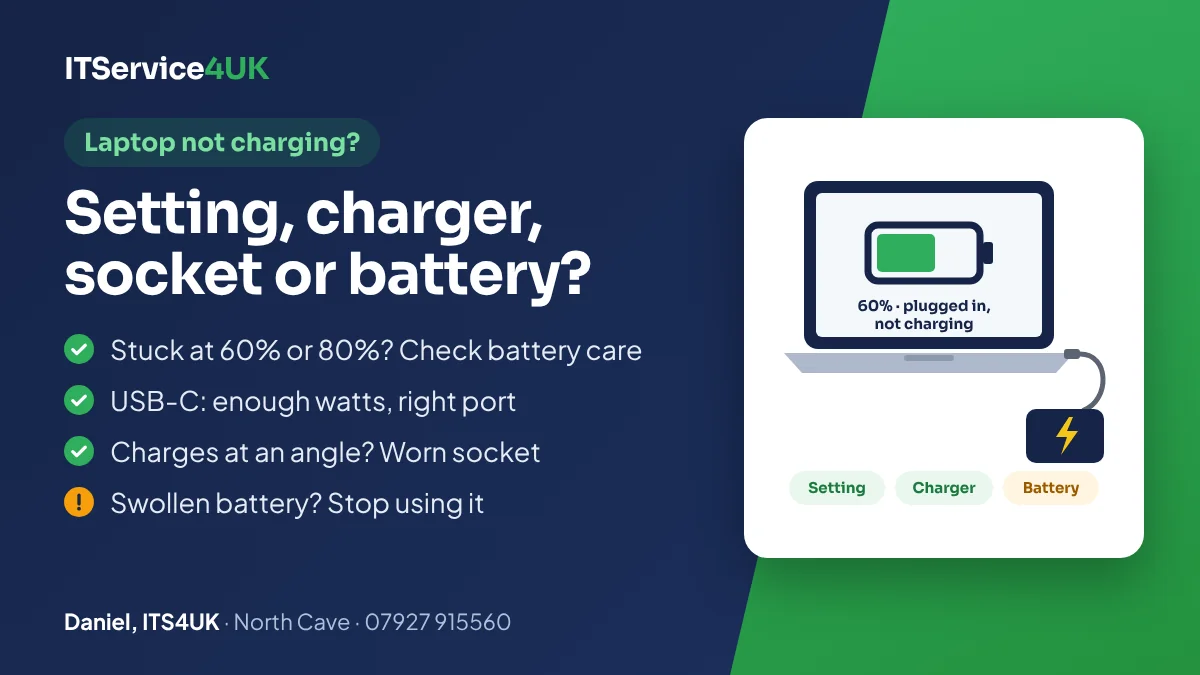
- Stuck at 55–60% or 80%? It's probably a battery-care setting, not a fault.
- USB-C laptop? Use a charger with enough watts, in a port that supports charging.
- Only charges at an angle? The socket is worn. Stop wiggling the cable and get it checked.
- Battery bulging? Stop using and charging the laptop.
First: is it a setting rather than a fault?
Many laptops can stop charging early on purpose, so the battery lasts more years. Windows then shows “plugged in, not charging” even though nothing is wrong. Check for these before anything else:
| Make | Setting | Where to find it | Charges to |
|---|---|---|---|
| Lenovo | Conservation mode, or a battery charge threshold | The Lenovo Vantage app, in the power or battery settings | About 55–60% |
| HP | Battery Health Manager: “Maximize my battery health” (mainly business models) | BIOS setup (press F10 while it starts), or HP Power Manager | About 80% |
| Dell | “Primarily AC use”, or a custom charge setting | BIOS setup (press F2 while it starts), or Dell's power app | 50–80%, depending on the setting |
| ASUS | Battery Care Mode (Battery Health Charging) | The MyASUS app, in Device settings | 80% (Balanced) or 60% (Maximum Lifespan) |
If the laptop stays plugged in most of the time, leaving these on is good for the battery. Turn them off when you need a full charge for a trip. Some laptops also won't start topping up until the charge has dropped a little. For example, Lenovo says some ThinkPads won't start charging while the battery is above 95%, and that's normal.
Safe checks to try
- Check the lights. Look for a light on the charger and the charging light on the laptop. No light on the charger usually points to the charger or the wall socket. Try another wall socket rather than an extension lead.
- Check the whole cable. Look for kinks, splits or scorch marks, especially where the cable meets the plug and the brick. If the charger comes in two parts, push the mains lead firmly into the brick. Don't use a damaged charger.
- Use the right charger. It should have the same connector and voltage as the original, and at least the same wattage. Dell points out that a charger without enough power can run the laptop but not charge the battery.
- Look into the socket. With the laptop off and unplugged, shine a torch into the charging socket. Fluff or grit can stop the plug going fully in. A short puff of compressed air can clear it. Don't poke anything metal inside.
- Restart properly, then do a hard reset. Shut down fully and start again, rather than just closing the lid. If that doesn't help, unplug everything, hold the power button for 15–20 seconds, then plug in only the charger and start it.
- Install updates. Run Windows Update, and check for BIOS and battery updates in the maker's app (HP, Dell, Lenovo or ASUS). Their troubleshooting guides include this step because updates sometimes fix charging problems.
USB-C laptops: watts, ports and cables
More laptops now charge through USB-C, and that adds a few things that can go wrong. Microsoft lists them as the usual reasons Windows shows a “Slow charger” or “PC isn't charging” message:
- Not enough watts. A small phone charger fits the socket but can't supply enough power for a laptop. Use a USB-C Power Delivery (PD) charger with at least the wattage of the laptop's own charger.
- The wrong port. Not every USB-C port on a laptop accepts charging. Look for a charging symbol next to the port, or check the manual.
- The cable. Cheap cables are often rated for low power only. Use the cable that came with the laptop, or one rated for your charger's wattage.
- Docks and hubs. If you charge through a dock or monitor, plug the charger straight into the laptop to rule the dock out.
Common causes, and what they look like
| Cause | Typical signs | The fix |
|---|---|---|
| Charger or cable | No light on the charger. The laptop charges fine with a different, correct charger. | A replacement charger with the right connector and wattage. |
| Charging socket (DC jack or USB-C port) | Only charges at a certain angle. The plug feels loose. The charging light flickers when the cable moves. | Charging port repair, from £95 plus parts. |
| Battery | Charges slowly or not at all, runs down quickly, or switches off suddenly well before 0%. | A new battery. The price depends on the model, and you're told first. |
| Charging circuit on the main board | Everything above checks out, but it still won't charge. Often after a spill, a power surge or the wrong charger. | Board-level repair, after testing. |
| Battery-care setting | It always stops at the same level, such as 60% or 80%. | Turn the setting off (see the table above). |
On many laptops the charging socket sits on a short cable or a small separate board and can be swapped. On others it's soldered to the main board, which needs more careful work. Either way, you get the price before anything is done.
Is the battery worn out, or swollen?
Laptop batteries wear out with age and use. They hold less charge, and eventually may not charge at all. On Windows you can see how worn yours is with a battery report:
- Right-click the Start button and open Terminal (or search for Command Prompt).
- Type
powercfg /batteryreportand press Enter. - Open the battery-report.html file it saves (the location is shown on screen) and compare Design capacity with Full charge capacity.
The further the full charge capacity has fallen below the design capacity, the more worn the battery is. Dell's guidance is that below 40% of the design capacity, the battery is badly worn and should be replaced.
Swollen battery? Stop using it. Signs include a bulging case or gaps opening up, a trackpad or keyboard that's raised or won't click properly, a laptop that rocks on a flat table, or a lid that won't close properly. Switch it off, unplug the charger, don't press on the battery or try to puncture it, and get it replaced.
Prices and bringing it in
- Free diagnosis: you'll know whether it's the charger, the socket, the battery or the board before you pay for any repair.
- Charging port repair from £95 plus parts.
- Deeper testing £20 (£30 for business and trade) and chip-level testing £49 if the fault is on the board. You're told first, and they're charged even if it can't be fixed.
- 90-day guarantee on parts and labour (30 days for trade).
- Free collection and delivery within 5 miles of North Cave.
Bring the charger with the laptop, so it can be tested too. The workshop is at 27 Newport Road, North Cave (HU15 2NU), close to South Cave, Newport, Gilberdyke and Brough. It's open Monday to Friday 10am–6pm and Saturday 10am–2pm, with early drop-off and evening appointments by arrangement. Call 07927 915560 or get in touch. If it won't switch on at all, see laptop won't turn on.
Questions
Why does my laptop say “plugged in, not charging”?
Often it's a battery-care setting that stops charging at around 55–80% to protect the battery. If it isn't that, the charger may not be powerful enough, the charging socket may be loose, or the battery may be worn out. Check the battery settings first, then try the original charger in a different wall socket.
Why won't my laptop charge past 60% or 80%?
That's usually a battery-care setting: Conservation mode on Lenovo, Battery Health Manager on HP, Primarily AC use on Dell, or Battery Care Mode on ASUS. It's there to make the battery last longer. Turn it off in the maker's app or the BIOS when you need a full charge.
Can I charge my laptop with a phone charger?
Only if the laptop charges through USB-C and the charger supplies enough power. Many phone chargers can't, so the laptop charges very slowly or not at all, or Windows shows a “Slow charger” warning. Use a USB-C PD charger with at least the wattage of the laptop's own charger.
My laptop only charges when I hold the cable at an angle. What's wrong?
The charging socket is worn or loose, or the plug end of the charger is damaged. Try another correct charger first. If it's the socket, stop wiggling the cable, because a loose connection can get hot and damage the board. Charging port repair is from £95 plus parts.
How much does it cost to fix a laptop that isn't charging?
Diagnosis is free, and sometimes a new charger is all you need. Charging port repair is from £95 plus parts, and battery prices depend on the model. If the fault is on the board, deeper testing is £20 and chip-level testing is £49. You get the price before any work starts.
How do I know if my laptop battery needs replacing?
If it runs down much faster than it used to, switches off suddenly, or won't charge at all, it's probably worn. On Windows, the battery report (powercfg /batteryreport) compares the battery's design capacity with what it holds now. A swollen battery should be replaced straight away.
Sources
- Microsoft Support – Fix USB-C problems in Windows
- Lenovo Support – Battery not charging, stops at 60%
- Lenovo Support – Battery stops charging at 95% (ThinkPad)
- HP Support – HP Business Notebook PCs: HP Battery Health Manager
- Dell Support – How to troubleshoot AC adapter issues on a Dell laptop
- ASUS Support – ASUS Battery Health Charging: introduction
- Dell Support – How to generate a battery report using the POWERCFG command
- Dell Support – Swollen battery information and guidance
How I can help
Need a hand with this?
Free advice over the phone. Mon–Fri 10–6, Sat 10–2, early drop-off and evenings by arrangement.