By Daniel, ITS4UK · Updated 20 November 2026 · 10-minute read
Pressed the power button and nothing happens? Or the lights come on but the screen stays black? Those are two different faults, and a few safe checks will tell you which one you've got. Sometimes it's as simple as the charger. If it isn't, the fault is usually on the main board, and that can often be repaired by replacing the part that has failed rather than the whole board.
The short version
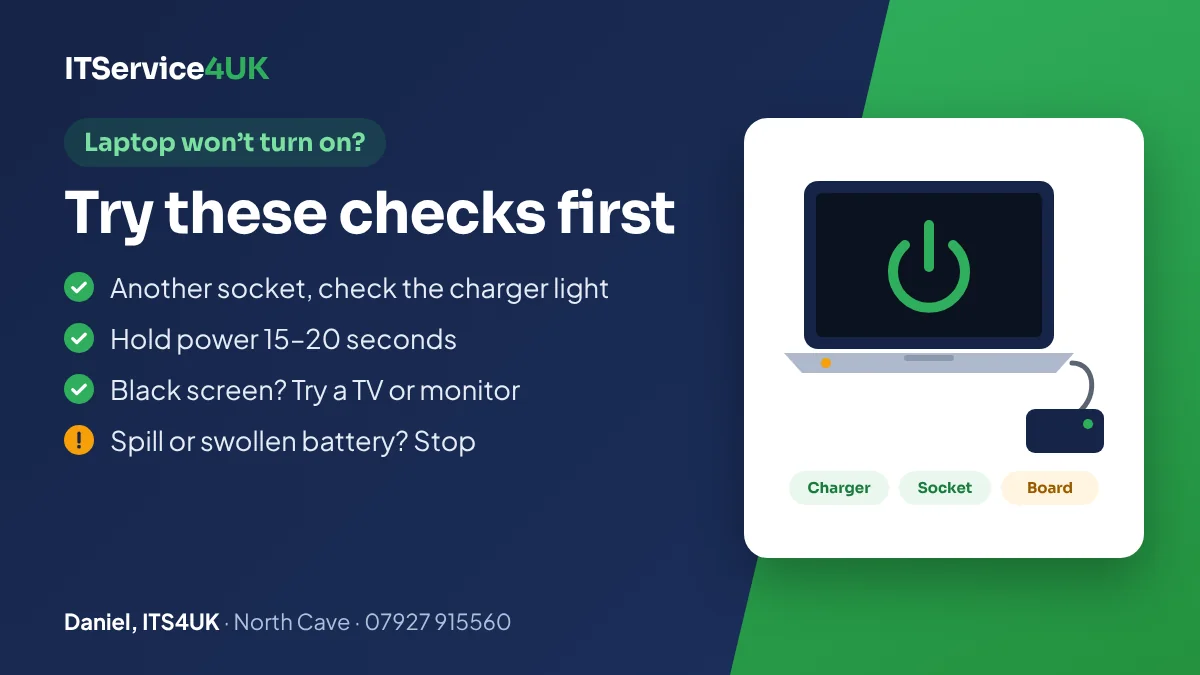
- Try another wall socket and look for a light on the charger.
- Unplug everything, hold the power button for 15–20 seconds, then try again on the charger alone.
- Lights on but a black screen? Plug in a TV or monitor to see if the laptop is actually running.
- Got wet, smells of burning, or the battery looks swollen? Stop trying it, unplug it and get it checked.
- Your files are usually still there, even when the laptop is dead.
Which kind of “won't turn on” is it?
Watch and listen when you press the power button. What happens tells you where to look.
| What you see | What it usually means | Where to start |
|---|---|---|
| Nothing at all: no lights, no fan, no sound | No power is reaching the main board. It could be the charger, the charging socket on the laptop, the battery or the board itself. | Checks 1–4 below |
| Lights or the fan come on, but the screen stays black | The laptop has power but isn't showing a picture. It could be the screen or its cable, or the laptop isn't starting properly. | Check 5: try a TV or monitor |
| A light flashes in a pattern, or it beeps | The laptop has found a fault while starting and is showing a code. | Check 6, and the section on flashing lights |
| It comes on, then switches off or keeps restarting | Often overheating, a worn battery or charger, or a board fault. | See laptop overheating or shutting down |
| It shows the maker's logo or an error, but Windows won't load | The laptop itself is working. This is a Windows or storage problem, not a power fault. | If it started after an update, see Windows Update stuck? |
Safe checks to try first
- Try a different socket. Plug the charger straight into a wall socket you know works, rather than an extension lead.
- Check the charger. Many chargers have a light on the brick or near the plug. If it's off, or the cable is kinked, split or scorched, the charger is the likely problem. Don't use a damaged charger. If the charger comes in two parts, push the mains lead firmly into the brick, as it can work loose.
- Use the right charger. A charger without enough power may not start the laptop at all. This is common with USB-C laptops, where a phone charger fits but can't supply enough watts. Use the laptop's own charger, or one with the same connector and at least the same wattage printed on it.
- Do a hard reset. Unplug the charger and everything else (USB sticks, mouse, dock). If the battery comes out, take it out. Hold the power button down for 15–20 seconds, then put the battery back, plug in just the charger and press the power button normally. This drains leftover charge that can stop a laptop starting. If the battery may be completely flat, give it at least 30 minutes on charge before you try again.
- Find out if it's actually running. If you can hear the fan or see lights but the screen is black, plug in a TV or monitor with an HDMI cable. If a picture appears there, the laptop works and the fault is the screen or its cable. If Windows seems to be running behind a black screen, press the Windows key + Ctrl + Shift + B together, which resets the graphics driver.
- Count any flashes or beeps. Write down the pattern before you call (see below).
- Think about what changed. A spill, a knock, a new part, a recent repair or a Windows update are all clues worth mentioning.
Stop and get it checked if:
- a drink has been spilled on it. Don't switch it on or charge it. See spilled a drink on your laptop?
- the laptop or charger smells of burning, or the charger gets very hot.
- the battery looks swollen: the case is bulging or splitting, the trackpad or keyboard is raised, or the laptop rocks on a flat table. Switch it off, unplug it, don't press on it and don't charge it again.
Flashing lights and beeps: what they mean
Many laptops report a start-up fault with a pattern of flashes or beeps that points to the part that has failed, such as the memory, the processor or the main board. Count the long and short flashes, and note how the pattern repeats.
- HP: the Caps Lock or Num Lock light flashes in a pattern when the laptop can't start. HP's support site has a table of what each pattern means.
- Dell: the battery or power light flashes amber and white in a pattern. On many Dell models a steady amber light on its own just means the battery is low. On supported models Dell also has a board self-test: with the laptop off, hold the M key and press the power button. If the battery light turns amber, the test has found a fault.
- Chromebooks: Google's fix for one that won't respond is a hardware reset: with it switched off, hold the Refresh key and tap the power button. Google warns that this can delete some files in the Downloads folder.
- MacBooks: see MacBook won't turn on.
If you'd rather not look it up, just tell me the pattern when you call.
Why laptops stop turning on
- The charger. Chargers fail, usually where the cable bends at either end, or inside the brick.
- The charging socket. The socket on the laptop (the DC jack or USB-C port) works loose or breaks, often after the cable has been knocked while plugged in. It may charge only at a certain angle for a while, then stop altogether. See laptop not charging.
- The battery. A completely flat or failed battery can stop some laptops starting, even on the charger.
- A fault on the main board. If the charger, socket and battery are fine, the problem is usually a failed part in the board's power circuits, often after a spill, a power surge or the wrong charger. The laptop is completely dead, or shows a light and nothing else.
- Memory, processor or graphics. The laptop powers up but can't finish starting, often with a flashing code.
- The screen, backlight or screen cable. The laptop is running but there's no picture, or only a very dim one. See laptop screen replacement.
- Liquid. A spill can stop a laptop days or weeks later, as corrosion spreads on the board.
How a dead laptop is repaired
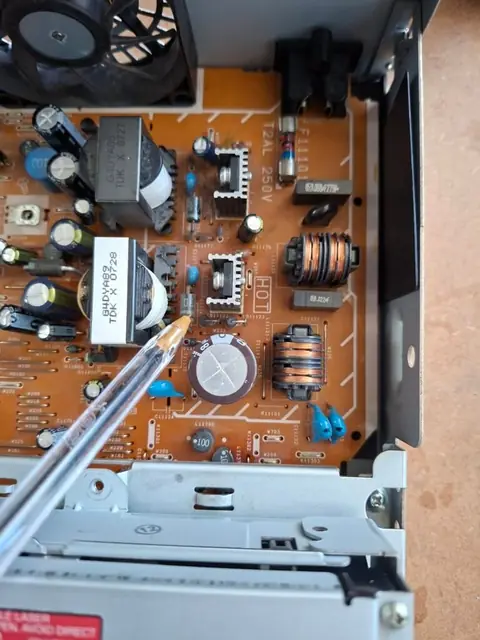
- Free check. The charger, socket, battery and the obvious faults first. You're told what's wrong and the price before any repair.
- Deeper testing, if needed. If the free check doesn't find it, deeper testing (£20, or £30 for business and trade) measures the board's power circuits to find where the power stops.
- Chip-level testing. For faults on the board itself, micro-level chip testing (£49) narrows it down to the individual component.
- The repair. Replacing the failed part, such as a socket, a chip or another small component, rather than the whole board where that's possible.
- Testing before it comes back. Power, charging, screen, keyboard and Wi-Fi are checked, and it's left running to make sure it stays on.
Deeper testing and chip testing are only done with your OK, and they're charged even if the fault can't be fixed. Some faults aren't worth fixing, for example when the processor has failed on a laptop that isn't worth much. If so, you'll be told honestly, and you can usually still get your files back.
What about your files?
A laptop that won't turn on usually hasn't lost your files. On most Windows laptops the files are on a separate drive that can be taken out and read on another computer, even if the laptop itself can't be repaired. Two things can complicate that:
- Encryption. Many Windows 11 laptops have BitLocker or device encryption turned on. The drive can still be read, but you'll need the recovery key, which is often saved in your Microsoft account. Microsoft explains where to find your BitLocker recovery key.
- Storage built into the board. Some slim laptops, and all recent MacBooks, have the storage soldered to the main board. Then the board has to be repaired first.
If the drive itself has failed, see data recovery. Local recovery is £80–£140 plus parts, with no fix, no fee.
Prices and bringing it in
- Free diagnosis, with no charge if you decide not to go ahead.
- Deeper testing £20 (£30 for business and trade) and chip-level testing £49, only if needed. You're told first, and they're charged even if the fault can't be fixed.
- Charging port repair from £95 plus parts, and laptop screen replacement from £75 plus the screen.
- £39 cleaning fee (non-refundable) if liquid has got inside.
- 90-day guarantee on parts and labour (30 days for trade).
- Free collection and delivery within 5 miles of North Cave.
The workshop is at 27 Newport Road, North Cave (HU15 2NU), close to South Cave, Newport, Gilberdyke and Brough. It's open Monday to Friday 10am–6pm and Saturday 10am–2pm, with early drop-off and evening appointments by arrangement. Call 07927 915560 or get in touch. Other common jobs are on the prices page.
Questions
Why won't my laptop turn on when it's plugged in?
The usual causes are the charger, the charging socket on the laptop, a completely flat or failed battery, or a fault on the main board. Try another wall socket, check the light on the charger, do a hard reset (unplug everything and hold the power button for 15–20 seconds), then leave it on charge for 30 minutes. If there's still no sign of life, it needs testing.
My laptop has lights on but a black screen. What's wrong?
The laptop is getting power. Plug in a TV or monitor: if a picture appears, the screen or its cable is at fault. If not, it could be the memory, graphics or main board. If Windows seems to be running, press the Windows key + Ctrl + Shift + B to reset the graphics driver.
Why is the Caps Lock light flashing on my HP laptop?
HP laptops flash the Caps Lock or Num Lock light in a pattern when they find a fault while starting, such as a memory, processor or board problem. Count the flashes and look the pattern up on HP's support site, or tell me when you call.
What does an orange light on a Dell laptop mean?
On many Dell models a steady amber light just means the battery is low. If the light flashes amber and white in a repeating pattern, the laptop is showing a fault code, and Dell's support site lists what each pattern means.
Will I lose my files if my laptop won't turn on?
Usually not. On most Windows laptops the files are on a drive that can be read on another computer, even if the laptop can't be fixed. If the drive is encrypted you'll need the BitLocker recovery key, which is often saved in your Microsoft account. If the storage is built into the board, the board needs repairing first.
Is it worth repairing a laptop that won't turn on?
Often, yes, especially when it's the charger, the charging socket or a single failed part on the board. Diagnosis is free, and if it isn't worth repairing you'll be told before you spend anything.
How much does it cost to fix a laptop that won't turn on?
Diagnosis is free. Charging port repair is from £95 plus parts. If the fault is on the board, deeper testing is £20 and chip-level testing is £49, charged even if it can't be fixed. You get the repair price before any work starts.
Can you collect my laptop?
Yes. Collection and delivery are free within 5 miles of North Cave, which includes South Cave and Newport. Further afield, call to arrange it.
Sources
- HP Support – HP Notebook PCs: Computer does not start and emits an LED or beep code
- Dell Support – Resolve no power, no POST, no boot or no video issues
- Dell Support – Diagnostic and battery indicators for Dell laptops
- Dell Support – Swollen battery information and guidance
- Microsoft Support – Troubleshooting blank screens in Windows
- Microsoft Support – Find your BitLocker recovery key
- Google Chromebook Help – Reset your Chromebook hardware
How I can help
Need a hand with this?
Free advice over the phone. Mon–Fri 10–6, Sat 10–2, early drop-off and evenings by arrangement.