By Daniel, ITS4UK · Updated 20 November 2026 · 7-minute read
A screen that says “Working on updates” or “Don't turn off your PC” for ages is worrying, but it's rarely a disaster. The two things to avoid are switching off too soon, and leaving a PC that has genuinely frozen for days. Here's how to tell the difference, and how to get updates working again.
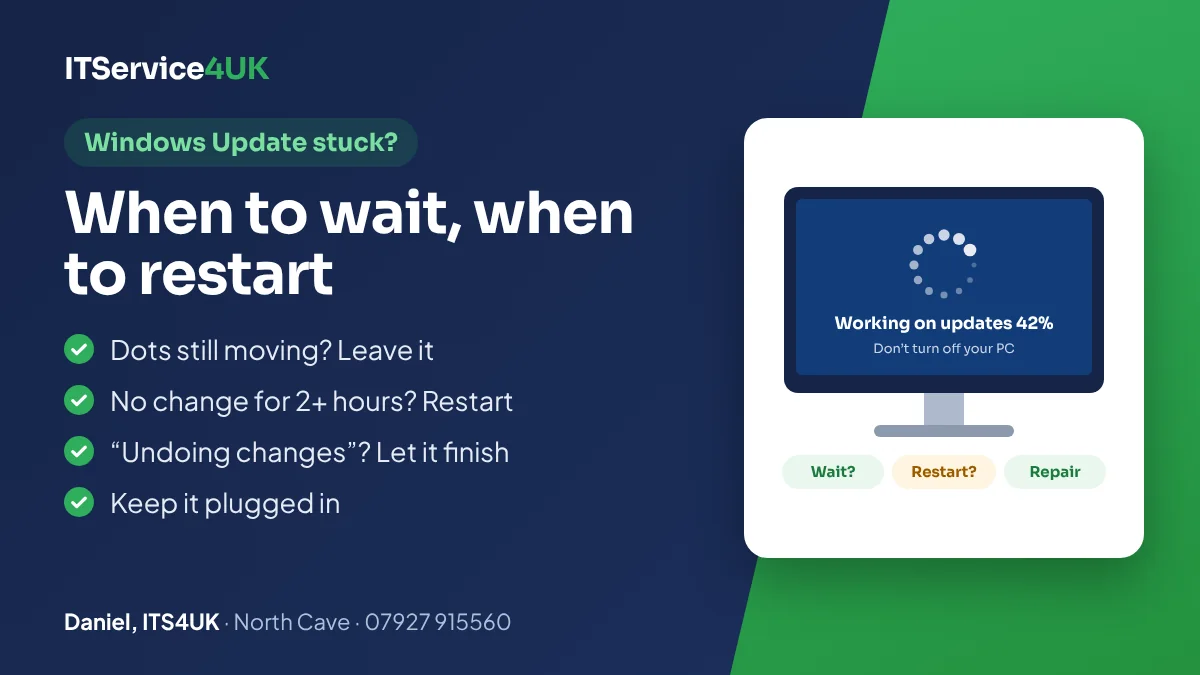
The short version
- Dots still spinning or the percentage moving? Leave it plugged in and wait.
- Nothing has changed for two hours or more? Hold the power button to restart it.
- “Undoing changes”? Let it finish on its own.
- Windows starts but updates keep failing? Run Microsoft's troubleshooter, then “Fix problems using Windows Update”.
What kind of stuck is it?
| What you see | What it means | What to do |
|---|---|---|
| “Working on updates” or “Don't turn off your PC”, with dots or a percentage | Windows is installing an update before or after a restart. | Wait, as long as it's still moving. |
| Stuck at 100%, or “Getting Windows ready” | Windows is finishing off, which can take a while. | Wait, then restart if nothing changes for a couple of hours. |
| “We couldn't complete the updates. Undoing changes” | The update failed and Windows is putting things back as they were. | Let it finish. Don't switch off. |
| Settings shows an update stuck at 0%, pending, or failing with an error code | Windows works, but the update won't download or install. | Follow the fixes below. |
| Keeps restarting, or won't start after an update | The update has caused a start-up problem. | See “If the PC won't start after an update”. |
How long to wait
Microsoft doesn't give a set time, and it varies a lot. Small monthly updates are often quick, while big yearly feature updates take longer, especially on an older laptop with a mechanical hard drive. While you wait:
- Keep it plugged in. A laptop running out of battery in the middle of an update is the thing to avoid.
- Look for signs of life. Spinning dots, a percentage that creeps up, or a flickering drive light mean it's still working.
- Leave it alone. Don't press keys or close the lid.
There's no official cut-off, but a sensible rule of thumb is this: if the percentage hasn't moved and there's no sign of activity for two hours or more, it's reasonable to restart it.
Restarting a frozen update safely
- Make sure the charger is plugged in.
- Hold the power button down for 10–20 seconds, until the PC switches off completely.
- Wait a few seconds, then switch it on as normal.
Windows will normally either finish the update or undo it and start up as before. Forcing a restart does carry a small risk that Windows won't start properly afterwards. If that happens, the recovery steps further down usually sort it out, and Microsoft says removing an update that way doesn't affect your files or apps.
If Windows starts but updates keep failing
These are the steps Microsoft recommends, in a sensible order. Back up anything important to a USB stick or OneDrive first.
- Restart and try again. Use Start → Power → Restart (not Shut down), then open Settings → Windows Update and select Check for updates.
- Run the Windows Update troubleshooter. On Windows 11, go to Start → Settings → System → Troubleshoot → Other troubleshooters, and select Run next to Windows Update. Microsoft also offers it in the Get Help app.
- Check the basics. Make sure it's plugged in and connected to the internet, and that you're signed in with an administrator account.
- Free up space. Updates fail when the drive is nearly full. Go to Settings → System → Storage and use the cleanup recommendations, or move photos and videos onto an external drive.
- Unplug extras. Remove USB drives, docks and other devices you don't need, then try again.
- Check the date and time. In Settings → Time & language → Date & time, turn on Set time automatically and Set time zone automatically.
- Repair Windows using Windows Update (Windows 11). Go to Settings → System → Recovery and, under Fix problems using Windows Update, select Reinstall now. This reinstalls your current version of Windows, and Microsoft says it keeps your apps, files and settings. Keep it plugged in and online until it has finished.
On Windows 10, the troubleshooter is under Settings → Update & Security → Troubleshoot → Additional troubleshooters. If your PC still runs Windows 10, see also Windows 10 security updates.
If the PC won't start after an update
If Windows fails to start a couple of times in a row, it should open the blue recovery screen (“Choose an option”) on its own. From there:
- Select Troubleshoot → Advanced options → Uninstall Updates.
- Choose Uninstall latest quality update (the usual monthly update). If the problem started after a big yearly update, choose the feature update option instead.
- Follow the prompts and restart.
Microsoft says removing an update this way doesn't affect your files or apps. If your drive is encrypted with BitLocker, you may be asked for the recovery key, which is often saved in your Microsoft account. Microsoft explains where to find your BitLocker recovery key.
Careful with “Reset this PC”. Even the Keep my files option removes your apps and settings, and Remove everything wipes the lot. Make sure you have a backup, or ask for help first.
Why updates get stuck
- A nearly full drive. Updates need free space to download and install.
- A slow, old hard drive. Mechanical drives make every update slow. An SSD upgrade (from £139, including a fresh Windows install) can make an older laptop feel much quicker.
- An interrupted download, or a slow or unreliable connection.
- Old drivers or other software getting in the way, such as out-of-date security software.
- A failing drive. If updates fail again and again, and the PC is also slow, freezes or makes clicking noises, the drive may be on its way out. Back up your files now, and see data recovery if it's already too late.
Prices and help
- Computer tune-up and updates £85, fixed price.
- Windows wipe and reinstall £75, fixed price, if Windows can't be repaired. Copying your files off and back again is a data transfer (£85–£189).
- SSD + Windows from £139, for older laptops that are slow to update.
- Free diagnosis, and a 90-day guarantee on repairs.
If Windows starts and you can get online, it can often be sorted out over the internet: call first, then see remote support. Otherwise, bring it in or use free collection within 5 miles of North Cave. The workshop is at 27 Newport Road, North Cave (HU15 2NU), close to South Cave, Newport, Gilberdyke and Brough. It's open Monday to Friday 10am–6pm and Saturday 10am–2pm, with early drop-off and evening appointments by arrangement. Call 07927 915560 or get in touch.
Questions
How long should a Windows update take?
There's no set time. Small monthly updates are often quick, while big feature updates can take much longer, especially on older PCs with a mechanical hard drive. If the dots are spinning or the percentage is moving, leave it plugged in and let it run.
Is it safe to turn off my PC during a Windows update?
Avoid it while the update is still progressing. If nothing has changed for two hours or more, holding the power button to restart is reasonable. Windows will normally finish or undo the update. If it then won't start, use the recovery screen to uninstall the latest update.
What should I do if Windows Update is stuck at 100%?
Give it longer, because the percentage doesn't always cover the whole process. If nothing changes for a couple of hours, restart it with the power button and let it carry on.
What does “Undoing changes” mean?
The update couldn't be installed, so Windows is putting your PC back the way it was. Let it finish, even if it takes a while. Once Windows starts, run the Windows Update troubleshooter and try again.
My PC won't start after an update. What can I do?
After a couple of failed starts, Windows should open the recovery screen. Choose Troubleshoot → Advanced options → Uninstall Updates and remove the latest quality update. Microsoft says this doesn't affect your files or apps. You may need your BitLocker recovery key.
Will fixing Windows Update delete my files?
The troubleshooter doesn't, and Microsoft says “Fix problems using Windows Update” keeps your apps, files and settings. “Reset this PC” is different: even with “Keep my files” it removes your apps and settings. Back up before trying the bigger fixes.
Can you fix Windows Update problems remotely?
If Windows starts and you can get online, it can often be done remotely. Call first, then follow the remote support page to connect. If it won't start, bring it in or use free collection within 5 miles of North Cave.
Sources
- Microsoft Support – Troubleshoot problems updating Windows
- Microsoft Support – Fix issues by reinstalling the current version of Windows
- Microsoft Support – How to uninstall a Windows update
- Microsoft Support – Recovery options in Windows
- Microsoft Support – Reset your PC
- Microsoft Support – Find your BitLocker recovery key
How I can help
Need a hand with this?
Free advice over the phone. Mon–Fri 10–6, Sat 10–2, early drop-off and evenings by arrangement.