By Daniel, ITS4UK · Updated 20 November 2026 · 6-minute read
A laptop screen that goes black, very dim or starts flickering can be anything from a setting or a driver to a worn cable in the hinge or a failed screen. A few simple checks usually show which, and whether it's a quick fix or a repair.
The short version
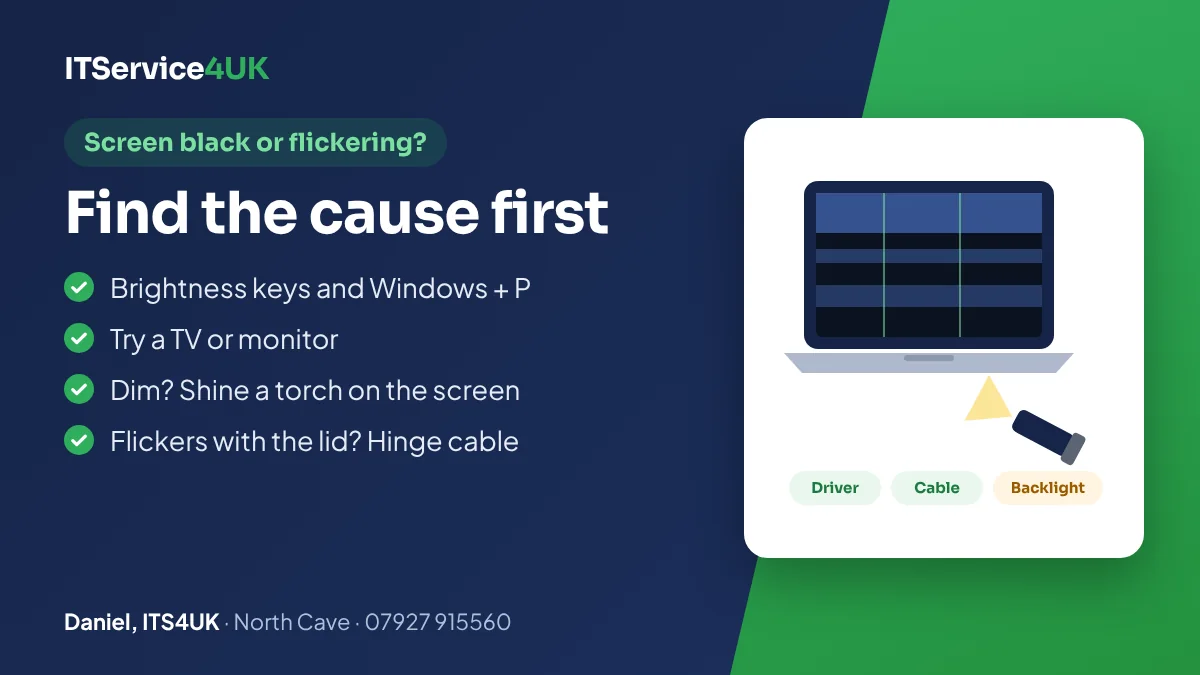
- Black screen but the laptop is on? Try the brightness keys and Windows key + P.
- Plug in a TV or monitor. Picture there? The laptop works, and the fault is on the screen side.
- Very dim? Shine a torch on the screen. A faint picture means the backlight has failed.
- Flickers when you move the lid? Usually the screen cable in the hinge.
- Flickers in Windows only? Often a display driver. Task Manager tells you (see below).
First: is the laptop actually on?
If there are no lights, no fan and no sound at all, the laptop isn't powering up, and the screen isn't the problem: see laptop won't turn on. This guide is for when the laptop is running (lights on, fan or sounds) but the screen is black, dim, flickering or showing lines.
Quick checks
- Turn the brightness up. Use the brightness keys, often together with the Fn key. Brightness can get turned right down by accident.
- Wake the screen. Press the Windows key + P and choose PC screen only, in case the picture is being sent to a second screen. Ctrl + Alt + Del can also bring the screen back.
- Reset the graphics driver. Press the Windows key + Ctrl + Shift + B together. The screen may flicker once and you may hear a beep.
- Try a TV or monitor. Connect one with an HDMI cable. If the picture is fine there, the laptop itself works and the fault is in its own screen, backlight or screen cable. If it's wrong on the TV as well, the graphics or the main board is more likely.
- The torch test. If the screen is black or very dim, darken the room and shine a torch close to the screen. If you can just make out the desktop, the screen works but its backlight doesn't. This test doesn't work on OLED screens.
- Move the lid slowly. If the picture flickers, cuts out or shows lines as you open or close the lid, the cable that runs through the hinge is the usual suspect.
- Dell laptops: run the built-in screen test. Turn the laptop off, hold the D key and press the power button. Dell says that if the fault shows up in this test, the screen panel itself is faulty. If it doesn't, the problem is more likely software or settings.
What the symptoms usually mean
| What you see | Usual cause | Typical fix |
|---|---|---|
| Black, but a faint picture with a torch | Backlight failure, in the screen or in the backlight circuit on the main board | A new screen, or a board repair if the fault is on the board |
| Flickers or cuts out when the lid moves | A worn or damaged screen cable in the hinge, or a loose connector | A new screen cable or reseating it; sometimes a hinge repair too |
| Lines, coloured patches or black blotches | A damaged screen panel, often after a knock or pressure on the lid | Screen replacement, from £75 plus the screen |
| Fine on a TV, faulty on the laptop's own screen | The laptop's screen, its cable or the backlight | Testing, then replacing the faulty part |
| Faulty on the laptop screen and on a TV | The graphics chip, memory or main board | Board-level testing and repair |
| Fine while starting up, flickers in Windows | A display driver, the refresh rate or an app | Driver and settings fixes (see the next section) |
Flickering: driver, app or hardware?
Microsoft says flickering in Windows is usually caused by a display driver or an incompatible app, and suggests a simple test:
- Press Ctrl + Shift + Esc to open Task Manager.
- If Task Manager flickers along with everything else, the display driver is the likely cause. If Windows recently updated it, roll it back: Device Manager → Display adapters → right-click the adapter → Properties → Driver → Roll Back Driver. Otherwise, choose Update driver.
- If Task Manager doesn't flicker but the rest of the screen does, an app is the likely cause. Update or uninstall recently installed apps, one at a time.
Dell also lists the wrong refresh rate and faulty video cables as causes of flicker. In Windows 11, the refresh rate is under Settings → System → Display → Advanced display. If the flicker changes when you move the lid, or shows on the maker's logo before Windows starts, it's most likely hardware rather than software.
How screen repairs work
The first step is finding out which part has failed: the screen panel, the cable, the backlight or the main board. Then:
- Screen replacement. The panel is replaced with a matching part: same size, resolution and connector. Touch screens and some slim models use a complete screen assembly, which costs more.
- Screen cable. Replaced or reseated. The hinge is checked too, because a stiff or broken hinge is often what damaged the cable.
- Backlight or graphics faults on the board. Board-level testing to find the failed part, then repair.
You get the price before any work starts. For MacBooks, see MacBook screen repair, and for HP laptops, HP laptop screen repair.
Prices and bringing it in
- Free diagnosis, with no charge if you decide not to go ahead.
- Laptop screen replacement from £75 plus the screen.
- Deeper testing £20 (£30 for business and trade) and chip-level testing £49 if the fault is on the board. You're told first, and they're charged even if it can't be fixed.
- 90-day guarantee on parts and labour (30 days for trade).
- Free collection and delivery within 5 miles of North Cave.
The workshop is at 27 Newport Road, North Cave (HU15 2NU), close to South Cave, Newport, Gilberdyke and Brough. It's open Monday to Friday 10am–6pm and Saturday 10am–2pm, with early drop-off and evening appointments by arrangement. Call 07927 915560 or get in touch. Other common jobs are on the prices page.
Questions
Why is my laptop screen black when the laptop is on?
It could be the brightness, a display setting, the graphics driver, the backlight, the screen cable or the main board. Try the brightness keys, Windows key + P, and Windows key + Ctrl + Shift + B, then plug in a TV or monitor and try the torch test.
Why does my laptop screen keep flickering?
Microsoft says flickering in Windows is usually a display driver or an incompatible app: if Task Manager flickers too, it's likely the driver. The wrong refresh rate can also cause it. If it changes when you move the lid, the screen cable in the hinge is the usual cause.
Why is my laptop screen so dim, even on full brightness?
The backlight is probably failing. Shine a torch close to the screen: if you can just see the picture, the screen works but the backlight doesn't. The fault can be in the screen itself or in the backlight circuit on the main board.
My laptop works on a TV but not on its own screen. What's wrong?
The laptop itself is working. The fault is in its own screen, the backlight or the cable that connects the screen, and all of these can be repaired.
How much does a laptop screen replacement cost?
Laptop screen replacement is from £75 plus the screen. The screen's price depends on the model, and touch screens cost more. Diagnosis is free, and you get the full price before any work starts.
Can I keep using a laptop with a cracked screen?
If it still works, you can use it carefully for a short time, or plug in a monitor. Cracks often spread, and broken glass can cut, so it's best to get it replaced.
Sources
- Microsoft Support – Troubleshoot screen flickering in Windows
- Microsoft Support – Troubleshooting blank screens in Windows
- Dell Support – Laptop screen not working: fix common display issues
- Dell Support – How to run the LCD built-in self-test on a Dell laptop
- iFixit – Dell laptop black screen (torch test)
How I can help
Need a hand with this?
Free advice over the phone. Mon–Fri 10–6, Sat 10–2, early drop-off and evenings by arrangement.