By Daniel, ITS4UK · Updated 20 November 2026 · 5-minute read
“Printer offline” rarely means the printer is broken. Usually Windows has lost touch with it: the printer has dropped off the Wi-Fi, its network address has changed, or a stuck print job is blocking everything behind it. Work through these steps in order, starting with the quickest.
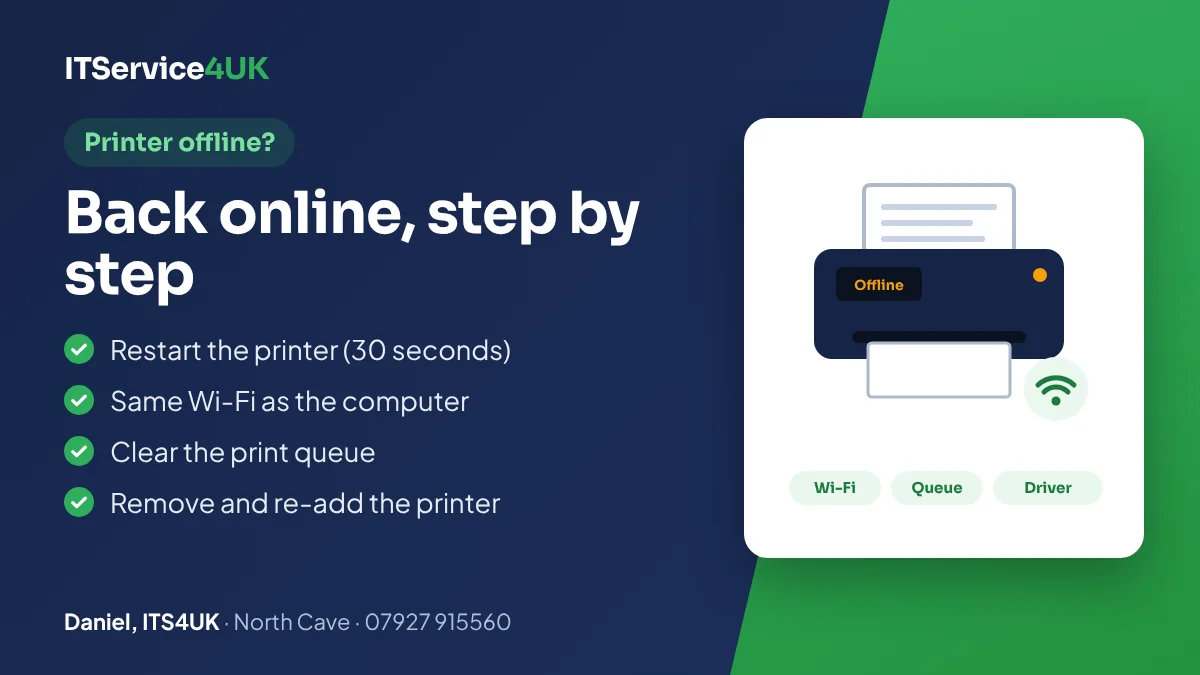
The short version
- Restart the printer: off, unplug for 30 seconds, back on.
- Check it's on your Wi-Fi, the same network as the computer.
- Clear the print queue, and make sure it isn't set to “Use printer offline”.
- Still stuck? Run the printer troubleshooter, then remove and re-add the printer.
- HP printer? HP's free Print and Scan Doctor has a version made for offline printers.
Quick checks first
- Restart the printer. Turn it off, unplug it for 30 seconds, then plug it back in and turn it on.
- Look for errors on the printer. Check its screen or lights for a paper jam, no paper, empty ink or toner, or an open cover.
- Check the connection. For a USB printer, make sure the cable is pushed in firmly at both ends. For a Wi-Fi printer, use the printer's own menu (or its manual) to check it's connected to your Wi-Fi.
- Restart the computer, and the router too if other devices are having trouble with the internet.
Fixes in Windows 11
These are Microsoft's steps for a printer that shows as offline, in order:
- Run the printer troubleshooter in the Get Help app.
- Clear the print queue. Go to Start → Settings → Bluetooth & devices → Printers & scanners, select your printer and choose Open print queue. Select the three dots (…) and choose Cancel all. If you see an option called Use printer offline or Pause printing turned on, turn it off.
- Make it the default printer. In Printers & scanners, select the printer and choose Set as default. If that option is missing, turn off Let Windows manage my default printer first.
- Restart the Print Spooler. Search for “services” on the taskbar, open Services, right-click Print Spooler and select Restart.
- If print jobs still won't clear: in Services, stop the Print Spooler, delete the files inside C:\Windows\System32\spool\PRINTERS (not the folder itself), then start the Print Spooler again.
- Remove and re-add the printer. In Printers & scanners, select the printer, choose Remove, then Yes. With the printer on and connected, select Add device next to Add a printer or scanner.
- Restart the computer.
Windows 10
The same fixes work on Windows 10, but in different places. Go to Start → Settings → Devices → Printers & scanners, select your printer and choose Open queue. Then select the Printer menu, choose Set As Default Printer, and untick Pause Printing and Use Printer Offline if they're ticked. To cancel stuck jobs, select them, then Document → Cancel.
Wi-Fi printers that keep going offline
- Same network. The computer and printer need to be on the same Wi-Fi network: not one on the guest network, or on an extender with a different name.
- New router or Wi-Fi password. After a broadband change, the printer has to be connected to the new Wi-Fi from its own menu or the maker's app.
- A changing network address. The router gives the printer an address, and it can change. Then Windows looks in the wrong place and shows “offline”. Removing and re-adding the printer fixes it, and reserving a fixed address for the printer in the router stops it happening again.
- Signal and Wi-Fi band. A printer far from the router can keep dropping off. Some printers only work on 2.4 GHz Wi-Fi.
HP and Canon printers
- HP: HP's free Print and Scan Doctor for Windows has a version made for printers showing as offline. On a Mac, HP points to the Diagnose & Fix tool in the HP Smart app.
- HP+ printers: HP says HP+ needs an HP account, an internet connection and Original HP ink or toner for the life of the printer. If one of these printers loses its internet connection, or has refilled or non-HP cartridges, it may stop printing. HP's standard printers also block cartridges that don't have an HP chip.
- Canon: Canon's guide for an offline printer on Windows suggests checking that the right Canon printer driver is in use, checking the USB or Wi-Fi connection, and checking whether Windows protected print mode is turned on in Windows 11, as it changes which driver Windows uses.
When to get help
If Windows starts and the internet works, printer problems can often be sorted out over the internet: call first, then see remote support. For a new printer, a Wi-Fi printer that keeps dropping off, or several computers to set up, a home call-out sorts out the printer, the router and the computers in one visit. You'll be told the price first. Call 07927 915560.
The workshop is at 27 Newport Road, North Cave (HU15 2NU), close to South Cave, Newport, Gilberdyke and Brough. It's open Monday to Friday 10am–6pm and Saturday 10am–2pm, with early drop-off and evening appointments by arrangement. Call 07927 915560 or get in touch.
Questions
Why does my printer keep saying it's offline?
Usually Windows has lost the connection: the printer has dropped off the Wi-Fi, its network address has changed, it's on a different network from the computer, or a stuck print job is blocking the queue. Restart the printer, check the Wi-Fi, clear the queue, then remove and re-add the printer.
How do I get my printer back online in Windows 11?
Run the printer troubleshooter in the Get Help app. Then go to Settings → Bluetooth & devices → Printers & scanners, open the print queue and cancel all jobs, set the printer as default, restart the Print Spooler in Services, and if needed remove and re-add the printer.
My printer prints a test page but not from the computer. Why?
The printer itself works, so the problem is the connection or the driver on the computer. Clear the print queue, restart the Print Spooler, check both are on the same Wi-Fi, then remove and re-add the printer.
Why won't my HP printer print with new cartridges?
HP+ printers need Original HP ink or toner and an internet connection, and HP's standard printers block cartridges without an HP chip. So refilled cartridges can stop an HP+ printer working, and cartridges without an HP chip can be blocked on either kind.
How do I clear a stuck print job?
Open the print queue and choose Cancel all. If jobs won't clear, stop the Print Spooler in Services, delete the files inside C:\Windows\System32\spool\PRINTERS, then start the Print Spooler again.
Can you fix my printer remotely?
If the computer starts and the internet works, printer problems can often be fixed remotely. Call first. For printers that keep dropping off the Wi-Fi, a home visit is usually quicker.
Sources
- Microsoft Support – Troubleshooting offline printer problems in Windows
- Microsoft Support – Fix printer connection and printing problems in Windows
- HP Support – HP Print and Scan Doctor
- HP – HP+ printers: requirements
- Canon – Change to Offline / Cannot Communicate / Cannot Print (Windows)
How I can help
Need a hand with this?
Free advice over the phone. Mon–Fri 10–6, Sat 10–2, early drop-off and evenings by arrangement.